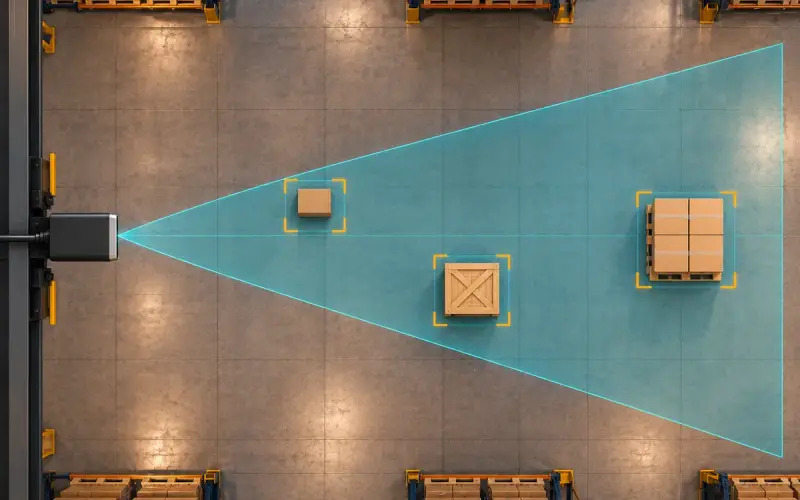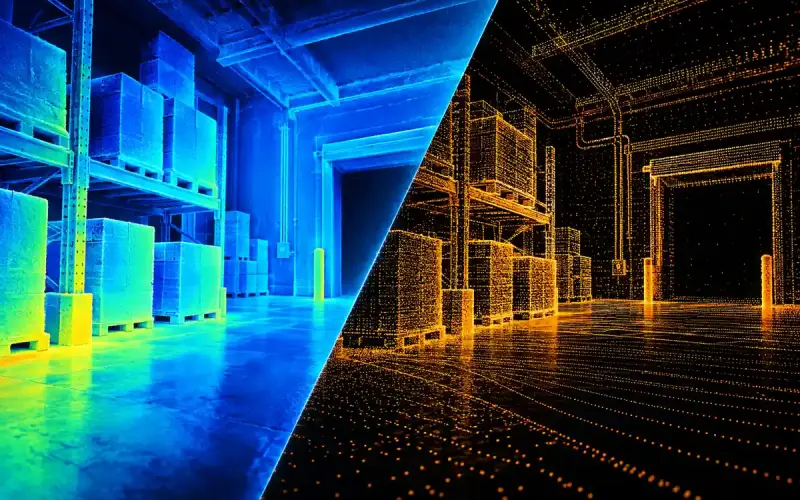

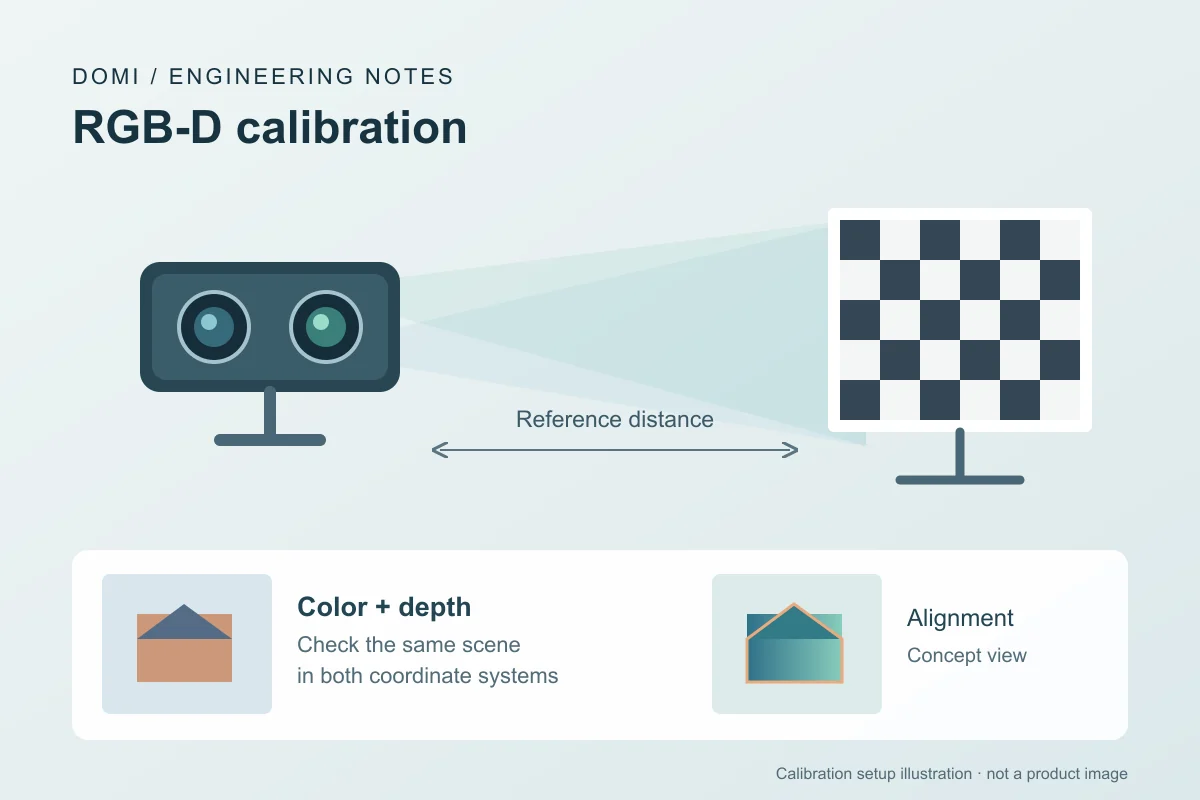
RGB-D depth camera calibration helps relate measured distances and color images to the same scene. The work your project needs depends on the output you use: distance measurements, color mapped onto depth, or paired images of moving objects. Start by identifying that task, then validate the result in the camera's intended installation.
A ToF camera may also need product-specific offset, temperature, and cover-window checks. Follow the manufacturer's calibration procedure for your model and operating mode, and keep the original calibration files before making changes.
Choose the calibration task
| What you observe or need | Start with | How to validate it |
|---|---|---|
| Measured distances differ from a physical reference | Depth scale, offset and measurement conditions | Compare depth with known distances across the working range and image regions used by the application |
| RGB and depth edges disagree in a stationary scene | Intrinsics, lens distortion and the RGB-to-depth transform | Check registration at several distances in the overlapping field of view |
| RGB and depth agree at rest but separate during motion | Frame timing, timestamps and processing delay | Compare stationary and moving captures using the available timing information |
| A new enclosure or installation changes the output | Final-assembly validation | Repeat the relevant depth and alignment checks with the finished installation |
Spatial registration relates the two camera coordinate systems. Timing checks establish whether the paired frames represent the scene at the required time. A motion-dependent mismatch is a reason to investigate timing as well as geometry; changing an extrinsic transform alone does not address a capture-time difference.
1. Capture a reference data set
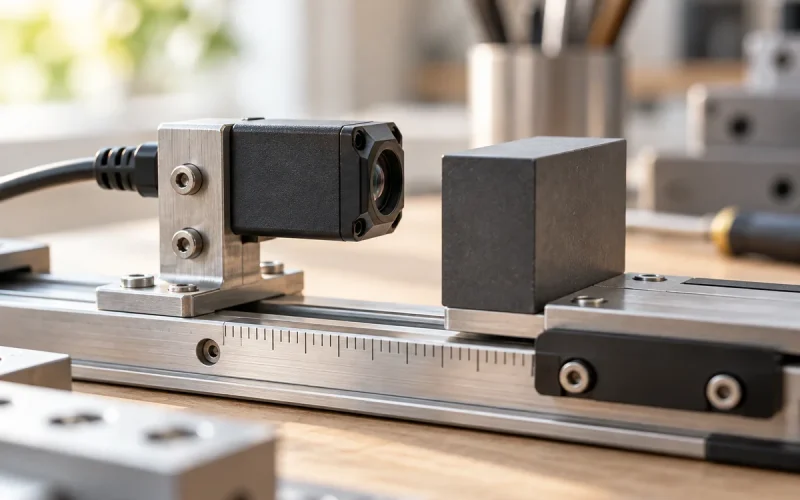
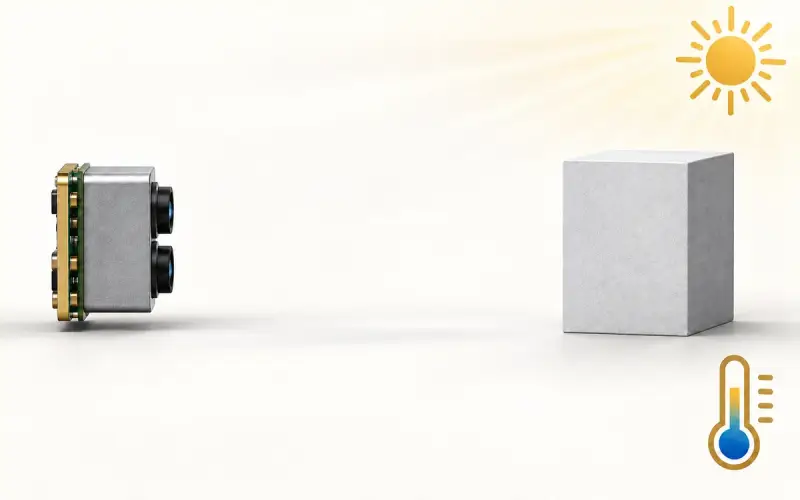
Fix the camera in its final or representative enclosure. Collect repeated images of a measured planar target or another traceable reference at several distances across the intended field of view. Repeat at relevant target reflectivities and ambient-light levels. If the device will operate across a broad temperature range, include stabilized temperature points. Save raw depth, confidence or amplitude, RGB frames where available, and the reference measurements.
2. Check intrinsics and depth scale
Estimate or verify focal length, principal point, and lens distortion using the camera vendor's calibration procedure or a suitable calibration target. Compare reported depth with the physical reference to assess scale, offset, nonlinearity, and spatial variation. Keep invalid pixels separate from a measured zero or maximum range. Correct only errors supported by enough observations; an attractive fit to one plane can fail at other distances.
Use a consistent distance convention: a depth value along the optical axis and a radial distance along a viewing ray require different reference comparisons. Record which quantity your camera outputs and which your test measures.
3. Align RGB and depth
If RGB and depth come from separate optical paths, estimate their rigid transform and verify registration at multiple depths. Report the coordinate convention and whether depth is registered into RGB coordinates or vice versa. A ToF-only camera has no RGB-to-depth extrinsic calibration to perform.
Check stationary targets first, then add motion if your application uses moving scenes. Evaluate the overlap visible to both cameras; occlusion can leave a surface visible in one image but hidden in the other.
4. Validate the finished assembly
Re-test after adding the cover window and final mounting. Internal reflections, contamination, thermal drift, multipath, and poor returns from dark, transparent, or shiny surfaces can change results. Report mean or median error, spread, invalid-return rate, and the distances and scene conditions tested. Recalibrate after a hardware, optics, firmware, or enclosure change if the vendor's procedure requires it.
Validate with captures beyond those used to estimate the calibration. Choose acceptance criteria from the application's measurement and alignment requirements before judging the result. For planning a reference test and interpreting error patterns, see our ToF camera accuracy article.
Use OpenCV calibration errors to find weak views
For an OpenCV-based workflow, calibrateCameraExtended exposes perViewErrors, the RMS reprojection error for each calibration view. Inspect those per-view results as well as the overall fit. This output is defined in the OpenCV calibration API documentation.
Keep the image and pose associated with each residual. A weak view is a reason to inspect corner detection, blur, target flatness and image coverage. Correct a capture problem before collecting a replacement view; removing inconvenient views solely to lower the reported RMS can conceal a setup problem. Then use separate validation captures to check metric depth and RGB-depth registration at the distances your application uses. A pixel residual and a distance error remain separate acceptance measures.
Keep a calibration and validation record
Save each result with the camera configuration and the data used to evaluate it. These records make later comparisons useful when settings, hardware or installation conditions change.
| Record | Details to keep |
|---|---|
| Camera and configuration | Model, unit identifier, hardware and firmware versions, SDK or processing software version, resolution and operating mode |
| Capture settings | Exposure or integration settings, frame rate, enabled filtering, warm-up procedure and available timestamp information |
| Reference and scene | Reference dimensions or distances and their uncertainty where known, target surface, sampled image regions, lighting and temperature |
| Installation | Mounting position, enclosure and cover-window configuration, plus photographs or a setup sketch |
| Calibration files | Original and revised files, parameter units, coordinate conventions, RGB-depth transform direction and file version |
| Validation results | Date, data-set identifier, sample count, depth error and spread, invalid-return rate, alignment observations and the application's acceptance criteria |
Keep image reprojection error, usually expressed in pixels, separate from physical depth error, expressed in distance units. A low reprojection error describes an image-geometry fit; depth performance still needs a comparison with physical references. Save both the summary and the underlying captures where available.
When to validate the camera again
Repeat the affected checks after changing optics, sensor hardware, the relative position of the RGB and depth cameras, or calibration files. Firmware, processing software, resolution, exposure and filtering changes also call for a review of the measurements your application uses.
Re-test the installed system after changing a protective window, enclosure or mounting arrangement, and when operation moves beyond the lighting, temperature, target surfaces or distances already evaluated. Moving the whole camera may require checking its relation to the machine or scene even if the internal RGB-to-depth geometry is unchanged.
Compare the new results with the saved baseline. If they no longer meet the project's criteria, identify the changed condition and follow the manufacturer's procedure to decide whether to adjust the setup or recalibrate. Revalidation checks performance; recalibration changes calibration parameters.
Select a DOMI RGB-D camera for your project
Our RGB-D camera range includes the DM-RGBD5002A VGA ToF RGB-D Depth Camera and DM-RGBD5003A VGA ToF RGB-D Depth Camera. Start with each model's specifications and connection requirements when choosing a candidate for evaluation.
Tell us about your project with the working distance, target surfaces, required measurement tolerance, mounting arrangement and host platform. Include whether you need depth alone, color aligned to depth, or paired frames for moving scenes so we can help you plan the evaluation.
FAQs
What should I keep with my camera’s calibration files?
Keep the camera identifier, configuration and software versions, parameter units and coordinate conventions, reference captures, test conditions and validation results. Retain the original files alongside any revised version so that each result can be traced to the configuration that produced it.
Does RGB-depth alignment also synchronize the images?
Alignment maps spatial coordinates between RGB and depth. Synchronization concerns capture timing. For moving scenes, evaluate both the spatial registration and the timing of the paired frames using the camera's available timing controls and information.